I’ve always been frustrated by how quickly a fast PC can start feeling sluggish. I realized that the culprit was almost always the silent accumulation of junk files cluttering my Windows 11 system. Over time, these temporary files, broken caches, and leftover data from updates don’t just eat up precious storage—they actually drag down my SSD’s performance. I recently started using Advanced SystemCare 19, and honestly, the AI Mode of this PC cleaner has completely changed how I maintain my computer. If you’re tired of your PC feeling weighed down, here is how I tackled the mess and regained that “new computer” speed.
What Actually Is “Junk” on My PC?
Before I started cleaning, I didn’t realize how much useless data was hiding in my system. It’s not just one type of file; it’s a collection of digital debris generated by daily tasks:
- Temporary Files: Produced by programs for temporary processes and frequently persist after closing.
- System Temporary Files: Generated by Windows processes during normal operation.
- Windows Update Cleanup: Remaining files from earlier updates that use up space on your drive.
- Recycle Bin: Deleted items that have not been permanently removed yet.
- Thumbnail Cache: Cached thumbnails that can turn old or become damaged.
- Internet/Browser Cache: Files saved by browsers to speed up website loading.
- Delivery Optimization Files: Files from updates that may no longer be needed after installation.
Why Cleaning Junk Files Is Important
I believe that many users ignore junk files until their PC shows the “Low Disk Space” warning, just like me. However, the impact goes beyond storage. Cleaning junk files is not just about tidying up—it’s essential for maintenance, security, and overall system efficiency. What makes regular deep cleaning effective:
- Improved System Speed: Less clutter reduces resource usage, enabling the CPU and RAM to run more efficiently.
- Extra Storage Space: Junk file cleanup can free up 5GB–20GB or more, especially on SSDs.
- More Available Storage: Junk cleanup can restore large amounts of space, particularly on SSD drives.
- Stronger Privacy Protection: Temporary files may store sensitive data that could be misused by malware.
- Fewer Software Problems: Corrupted temporary files can cause crashes or update and installation failures.
Why I Chose Advanced SystemCare 19 AI Mode
I’ve tried plenty of cleaners, but most of them feel like chores—I have to manually select settings, run scans, and worry about what I’m deleting. Advanced SystemCare 19 is different because of its AI Mode. It actually learns how I use my computer. It intelligently identifies what is safe to remove and works quietly in the background without me having to interrupt my workflow. Whether it’s clearing out hidden Microsoft Store leftovers or tidying up caches from my work apps like Adobe, it handles the heavy lifting automatically.
Features I Like
- Use AI to offer me a single-click solution that detects and cleans hidden junk files, including Windows 11 system caches, Microsoft Store leftovers, and temporary data from apps like Adobe and Discord.
- Continuously monitors the system in the background and removes junk files as they become unnecessary, ensuring proactive system maintenance.
- Enhanced privacy tools clear browsing history, cookies, and stored passwords from browsers and apps, minimizing tracking and protecting against data leaks.
- The Startup Optimizer identifies and disables unnecessary startup programs, significantly improving boot speed and potentially increasing boot time by up to 200%.
- Designed to run smoothly in the background, it uses minimal CPU and RAM while the Performance Monitor tracks system usage.
How I Clean My Windows 11 PC in Under 2 Minutes
Getting my system back to peak performance is now a total breeze. I don’t spend time digging through settings anymore; I just follow this quick routine:
Step 1. After downloading and installing this Windows cleaner from IObit official website, I just open it.

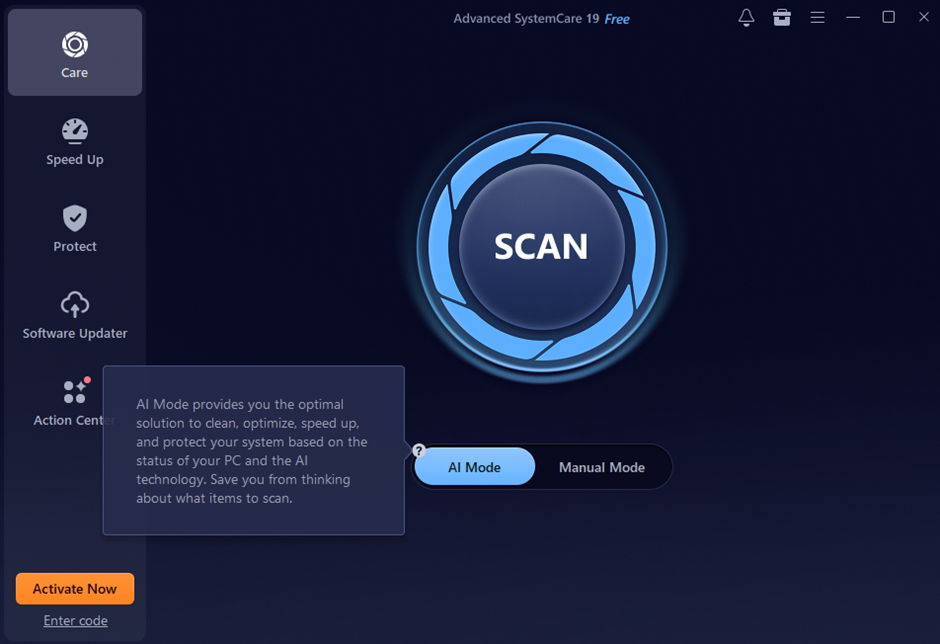
Step 2. I head to the “Care” tab and click “SCAN” in AI Mode. It does a comprehensive check of all my system files and performance bottlenecks.
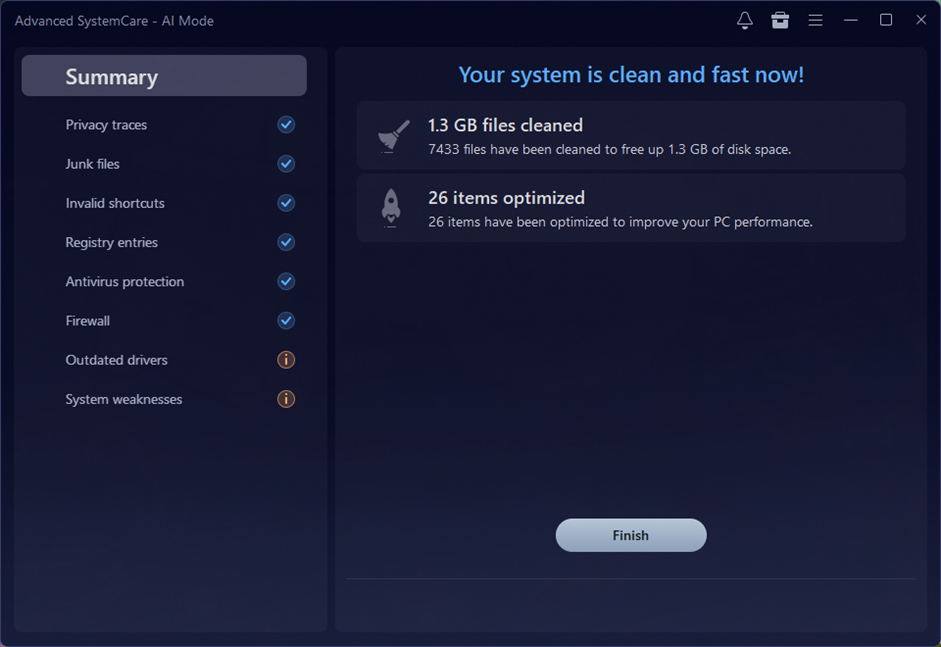
Step 3. Simply click “Fix” That’s it. It cleans the junk, repairs registry issues, and optimizes my startup items in one go.
Tips I Tried Useful for a Cleaner System
Even with the best software, I’ve found that a few simple habits go a long way in keeping my Windows 11 machine running like a dream:
- Uninstall Bloatware: Remove unused apps from Settings > Apps > Installed Apps. Many default apps in Windows 11 can still generate cache files even when not in use.
- Stream Instead of Downloading: Avoid saving large video or project files locally. Use cloud storage like OneDrive or Google Drive with “online-only” access when possible.
- Use One Primary Browser: Each browser stores its own cache and cookies. Sticking to one helps reduce unnecessary storage usage.
- Clean the Downloads Folder Monthly: Unused files tend to build up in the Downloads folder. Sort them by date and clear anything over six months old.
- Clear Browser Cache Manually: Even when using a single browser, regularly clear cache and cookies if performance starts to slow down.
Final Thoughts
Regular maintenance isn’t just a technical task—it’s the best way to ensure my computer lasts longer and performs better every single day. Since I started letting Advanced SystemCare 19 handle the deep cleaning, I haven’t dealt with a single “system lag” issue. It’s fast, it’s effortless, and it gives me total peace of mind. If you want a more responsive Windows 11 experience, I highly recommend giving it a try.
FAQs
Q: Is Advanced SystemCare 19 AI Mode safe for my files?
Absolutely. I’ve been using it for a while now, and it’s completely safe when downloaded from the official IObit site. It is designed to target only non-essential junk files, so it never touches your important documents or system configurations.
Q: Will I lose my saved passwords or bookmarks during the cleanup?
Nope! Your browser stores those in a different way. Cleaning junk files might occasionally log you out of a website, but your bookmarks and saved passwords stay exactly where they are.
Q: How often should I run a deep clean?
I’ve found that running a scan every 1–2 weeks is perfect for me. If you’re a heavy user who installs a lot of apps or downloads large files daily, you might want to do it a bit more frequently to keep things snappy.