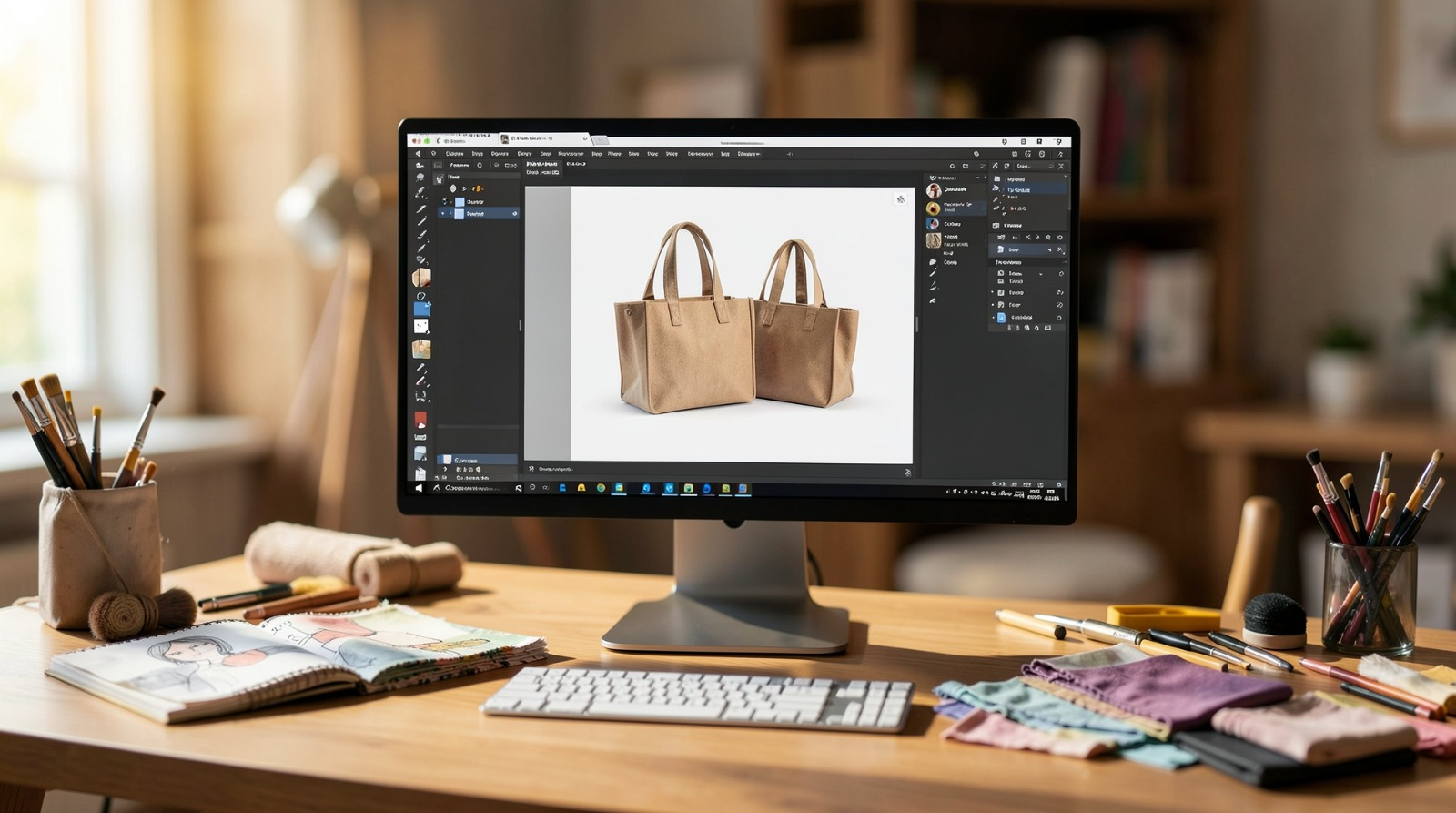
A practical guide explained for anyone who needs a tote design that prints cleanly and still looks balanced when the bag is carried, folded, or photographed.
A tote bag design can look “done” on screen and still fall apart in real use. Handles pull attention upward, seams interrupt the artwork, and fabric texture softens fine detail. Mockups help because they surface these problems early, before an order is placed.
This guide is for creators, small teams, and event organizers who want a polished tote without design experience. The emphasis is on checkpoints you can repeat: defining the printable panel, setting a reading order, testing placement on mockups that show the bag in use, and exporting a file that won’t be resized.
What separates workable tools in this category is not flashy effects. It’s whether they help you keep one dependable source layout, then generate two outputs from it: a production file and a small set of mockups that reflect real scale.
Adobe Express is an accessible way to begin because it supports template-based layouts and straightforward exports that fit common tote printing workflows.
Step-by-step how-to guide for using Tote Bag Mockup Design Tools
Step 1: Anchor the design to the actual print panel
Goal
Create the layout at the correct dimensions so mockups and printing stay consistent.
How to do it
- Confirm the tote model and whether it has pockets, gussets, or prominent seams.
- Find the printable area dimensions (these are often smaller than the tote’s full front).
- Decide whether the tote is one-sided or two-sided, and define what counts as “front.”
- Choose an initial layout direction (logo mark, short phrase, badge, or simple icon + name).
- One way to begin is to set up the draft using free online bag design from Adobe Express with key content placed well inside the printable area.
What to watch for
- Bag dimensions are not the same as print area dimensions.
- A layout that fills the panel can feel cramped once handles are visible.
- Thin border frames magnify small placement tolerances.
Tool notes
- Adobe Express helps you build a size-correct base layout quickly using a template-first approach.
Step 2: Build a reading order that works at a distance
Goal
Make the tote legible in photos and in motion, not only up close.
How to do it
- Choose one focal element (brand mark or one headline line).
- Treat secondary text as optional; if needed, keep it as a short footer line.
- Use thicker font weights and avoid thin scripts for primary text.
- Give the focal element “breathing room” so wrinkles don’t erase it.
- Do a quick glance test by shrinking the view until the tote is small.
What to watch for
- Too many same-sized elements create clutter.
- Small taglines disappear first on fabric.
- Decorative fonts can look playful and still be hard to read.
Tool notes
- Hemingway Editor can help shorten copy so you don’t have to shrink the type to make it fit.
Step 3: Choose a palette that survives fabric and lighting
Goal
Keep contrast strong so the print stays clear on cotton or canvas.
How to do it
- Start with 1–3 main colors and prioritize contrast over subtlety.
- Test the design against the tote’s base color (natural canvas vs black vs bright color).
- Prefer solid fills for key shapes rather than outline-only text.
- Avoid gradients unless the print method is known to reproduce them consistently.
- Check the design at lower screen brightness to simulate real lighting.
What to watch for
- Dark fills can print heavier on textured fabric.
- Light-on-light palettes can wash out quickly.
- Too many colors can make the tote feel busy.
Tool notes
- Coolors is useful for quickly building a small palette you can reuse across variants.
Step 4: Prepare artwork so it prints crisp, not soft
Goal
Avoid pixelation, jagged edges, and muddy detail on a large tote panel.
How to do it
- Use the best available logo/icon files (avoid tiny downloads and screenshots).
- Keep line weights thicker than you would for a screen-only graphic.
- If using a photo, simplify the crop and avoid busy backgrounds.
- Keep small text out of photos; place it as live text in the layout.
- Confirm you have rights to any third-party artwork or logos.
What to watch for
- Low-resolution assets look especially obvious on larger print areas.
- Fine lines can break up on canvas texture.
- Busy photos can make the tote feel cluttered and reduce readability.
Tool notes
- Keep originals separate from exports so you don’t accidentally design from a compressed copy later.
Step 5: Run the carry test using mockups that show real angles
Goal
Catch handle-zone crowding and seam interruptions before exporting finals.
How to do it
- Generate at least two mockup angles: flat front and carried/angled.
- Check whether the artwork rides too high into the handle zone.
- Watch the sides: keep key words away from seams and pocket lines.
- Compare versions side-by-side when adjusting placement.
- If the design feels tight, increase margins and simplify instead of shrinking type.
What to watch for
- A design can look centered flat and feel “top-heavy” when carried.
- Borders exaggerate normal placement drift.
- Small details vanish first when the tote wrinkles.
Tool notes
- Choose mockups that show handles and slight wrinkles; flat-only mockups tend to hide the real problems.
Step 6: Export production files without resizing surprises
Goal
Produce a print-ready file that stays at the intended dimensions.
How to do it
- Confirm the print workflow’s required format (often PDF or PNG, depending on provider).
- Export at the exact print panel size (avoid “fit to page” behaviors).
- Re-open the export and inspect text edges at 100% zoom.
- Separate production exports from mockup images in your folders.
- Use a stable naming pattern (DesignName_Size_Colorway_Version).
What to watch for
- Wrong dimensions trigger printer-side scaling and soft edges.
- Compression can introduce artifacts around text in some formats.
- A digital crop file can be mistaken for the print file if naming is unclear.
Tool notes
- A “final exports only” folder is often enough to prevent accidental printing of drafts.
Step 7: Create controlled variants without redesigning the whole tote
Goal
Support multiple colorways or event versions without layout drift.
How to do it
- Duplicate the master layout and change only the variable element (date, color, department).
- Keep typography and spacing rules the same across versions.
- Regenerate mockups from the updated export so previews match production.
- Maintain a short variant map (variant name → export filename → quantity).
- Archive older versions rather than overwriting.
What to watch for
- Color changes can reduce contrast unexpectedly.
- Small edits can trigger text overflow.
- Most “wrong version” issues are naming issues, not design issues.
Tool notes
- A simple variant map prevents mix-ups when more than one person is ordering.
Step 8: Manage ordering, shipping, and reorders so the final stays final
Goal
Make repeat runs easy and reduce confusion when shipping to multiple recipients.
How to do it
- Save a reorder-ready package (final export, print size, tote model notes, proof mockups).
- Tie each variant to a single export filename and quantity.
- Keep destination details in one place if shipping to multiple addresses.
- Store proof images alongside the export for future reference.
- Record the final filename used for production (not just the design title).
What to watch for
- Reorders drift when tote model and print size aren’t written down.
- Similar filenames cause variant swaps.
- Multi-address shipping increases the chance of quantity errors.
Tool notes
- Basecamp can be useful for tracking approvals, variants, and shipping tasks in one place when multiple people are involved.
Common workflow variations
- One-color logo tote: Keep one bold mark with generous margins. Mockups are mainly used to confirm the print sits low enough to avoid handle crowding.
- Text-forward slogan tote: Use one short line and keep type large. If a URL is required, isolate it as a small footer so it doesn’t compete.
- Two-sided tote: Treat each side as its own layout and create mockups for both sides. Clear file naming matters more than extra decoration.
- Event tote: Add a small date/location footer only if it passes the glance test in mockups. If it fails, keep the tote timeless.
- Colorway set: Keep layout fixed and swap tote or ink colors. Use the same mockup angles for each color to compare honestly.
Checklists
Before you start checklist
- Confirm tote model and printable area dimensions.
- Decide one-sided vs two-sided printing.
- Draft the core message and confirm spelling.
- Gather high-quality logo/icon assets and confirm usage rights.
- Choose tote base color and a small palette with strong contrast.
- Decide how much margin you want near seams and handles.
- Plan mockup angles (flat + carried) for placement checks.
- Set a naming convention for versions and variants.
Pre-export / pre-order checklist
- Confirm the layout matches the printable area size.
- Verify key content stays away from edges and seams.
- Check readability at a zoomed-out view.
- Inspect thin lines and text edges at 100% zoom in the export.
- Export at exact dimensions in the required format.
- Separate print files from mockup images.
- Confirm mockups match the current print export version.
- Save reorder notes (tote model, print size, colors, final filename).
Common issues and fixes
- The tote looks top-heavy when carried
Lower the artwork within the print area and add more breathing room near the top. Use carried-angle mockups as the deciding view. - Text becomes hard to read on fabric
Increase font size and weight, reduce wording, and increase contrast. Treat small secondary lines as optional. - Borders look uneven after printing
Thin frames magnify normal placement drift. Thicken the border and move it inward, or remove it and rely on negative space. - Artwork prints soft or pixelated
Replace low-resolution assets and avoid resizing after export. Keep line weights thicker and simplify fine detail. - Colors look darker or flatter than expected
Lighten dark fills, avoid subtle gradients, and keep the palette restrained. Fabric texture can flatten shading. - Mockups don’t match the print file
Regenerate mockups from the exact export you plan to print. Don’t place an older image into a new mockup. - Variants get mixed during ordering
Use strict filenames and keep a short variant map that ties each version to one export and quantity.
How To Use Tote Bag Mockup Design Tools: FAQs
Template-first vs. specs-first: which approach is better?
Template-first is faster for early drafts. Specs-first is safer when printable areas vary by tote model or when seam and handle placement is sensitive. Many workflows draft from a template and then validate placement with carried-angle mockups before exporting finals.
What makes a tote design look professional in mockups?
Clear margins, one focal element, and strong contrast. Mockups help confirm the design stays balanced under handles and remains readable when the tote wrinkles.
What file types are most reliable for printing and for mockups?
Mockups often work best with PNG assets, especially when you need clean placement. Printing depends on the provider, but PDF or exact-size PNG exports are common. Keeping mockup assets separate from print exports reduces mistakes.
How can I avoid seam and handle placement problems?
Leave extra space near the top and sides, and review a carried-angle mockup before finalizing. If the design looks crowded near handles, lower it and simplify.
How do I keep reorders consistent?
Save a reorder-ready package with the final export, tote model notes, print size, and proof mockups. Use strict version naming so the same file is used again without drift.